
Honeywell RTH9585WF manual
Open the official Smart Color manual, or choose the schedule, Hold or Wi-Fi task you need below.
RTH9585WF1004 Smart Series, including the /U listing. Official manufacturer PDF ↗
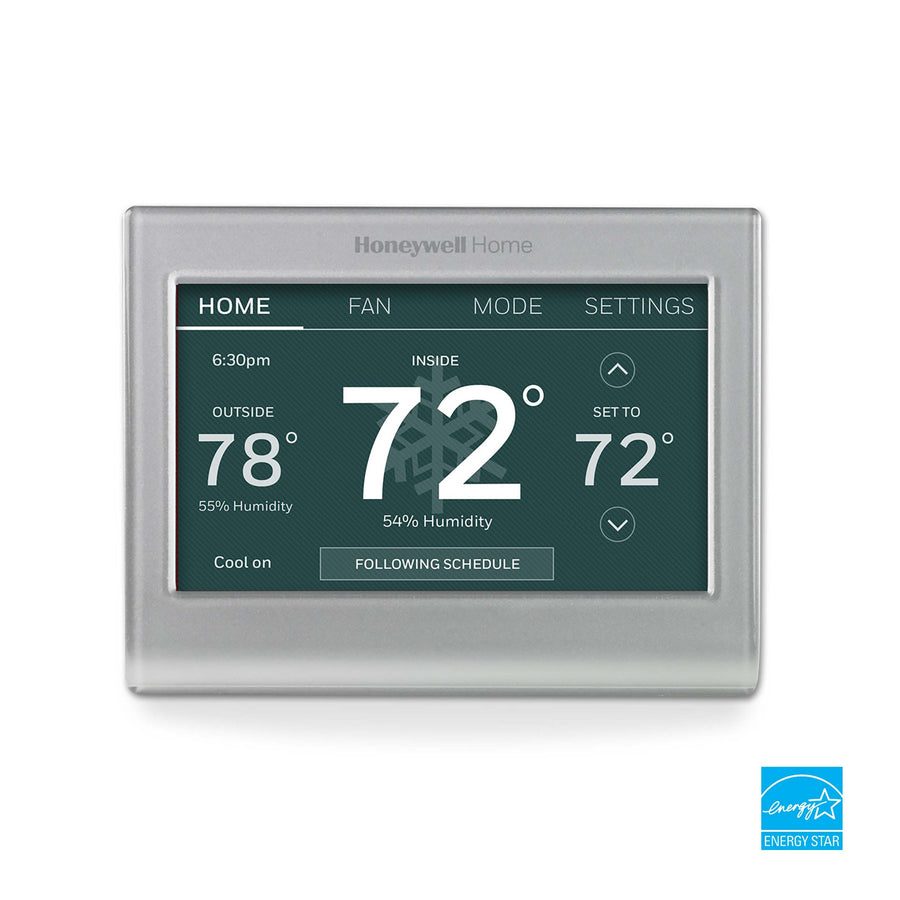
Schedule
Edit the home schedule
- Touch SETTINGS, then Create/Edit Schedule.
- Use View/Edit for an existing program, Guide Me for guided setup, or I’ll do it myself for manual entry.
- For manual entry, select days, then set each period’s time and heating/cooling temperatures. Save with Done.
A business-configured unit uses Occupied/Unoccupied periods. Use the matching part of the manual rather than changing its installation configuration.
Schedule: printed page 17 / PDF page 19Back to tasks ↑Temperature override
Use Hold or return to the schedule
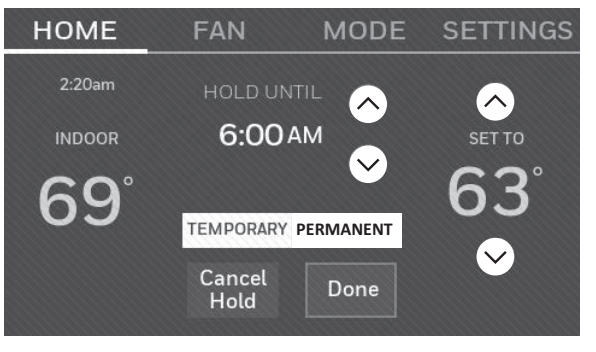
- Use the temperature arrows and choose a Hold Until time for a temporary change.
- For an ongoing home-use override, choose Permanent.
- Touch Cancel Hold to resume the programmed schedule.
Check the active Hold state before editing the schedule. A saved program and the temperature currently being held are separate settings.
Home and business overrides: PDF page 20Back to tasks ↑Wi-Fi and remote control
Connect using Wi-Fi Setup
- Open SETTINGS → Wi-Fi Setup. Select your network and enter its password.
- Wait for the connection confirmation. For remote access, follow the Total Connect Comfort registration instructions in the manual.
Honeywell Home lists 2.4 GHz Wi-Fi and Total Connect Comfort for this model. Do not follow the T6 Pro Smart app-pairing instructions.
Use the manufacturer’s support route if registration fails. Never post network passwords or thermostat registration identifiers in public comments.
Connection: PDF pages 12–14Registration: PDF pages 15–16Current manufacturer model and app listingBack to tasks ↑Clock
Change the time or date
Touch the current time, choose Set Time or Set Date, adjust with the arrows and save with Done. A registered, connected thermostat updates its time from the internet.
Clock instructions: PDF page 17Back to tasks ↑Model check
If your controls look different
Use the full number on your paperwork or thermostat label. A color screen or a similar Honeywell product name does not establish which manual applies.
For a blank screen, missing mode or equipment fault, use this manual’s troubleshooting section or contact the installer. This operating guide does not identify a failed component or choose wiring settings.
Find another Honeywell model’s manualManufacturer troubleshooting: PDF page 34Back to tasks ↑Sources and related guidance
Manufacturer manual and model/app listing checked October 17, 2026. PDF page links count the cover and front matter; printed numbers differ.